
Sign Up Flow#
In this example, we will create a sign up flow that allows users to sign up and login to their account.
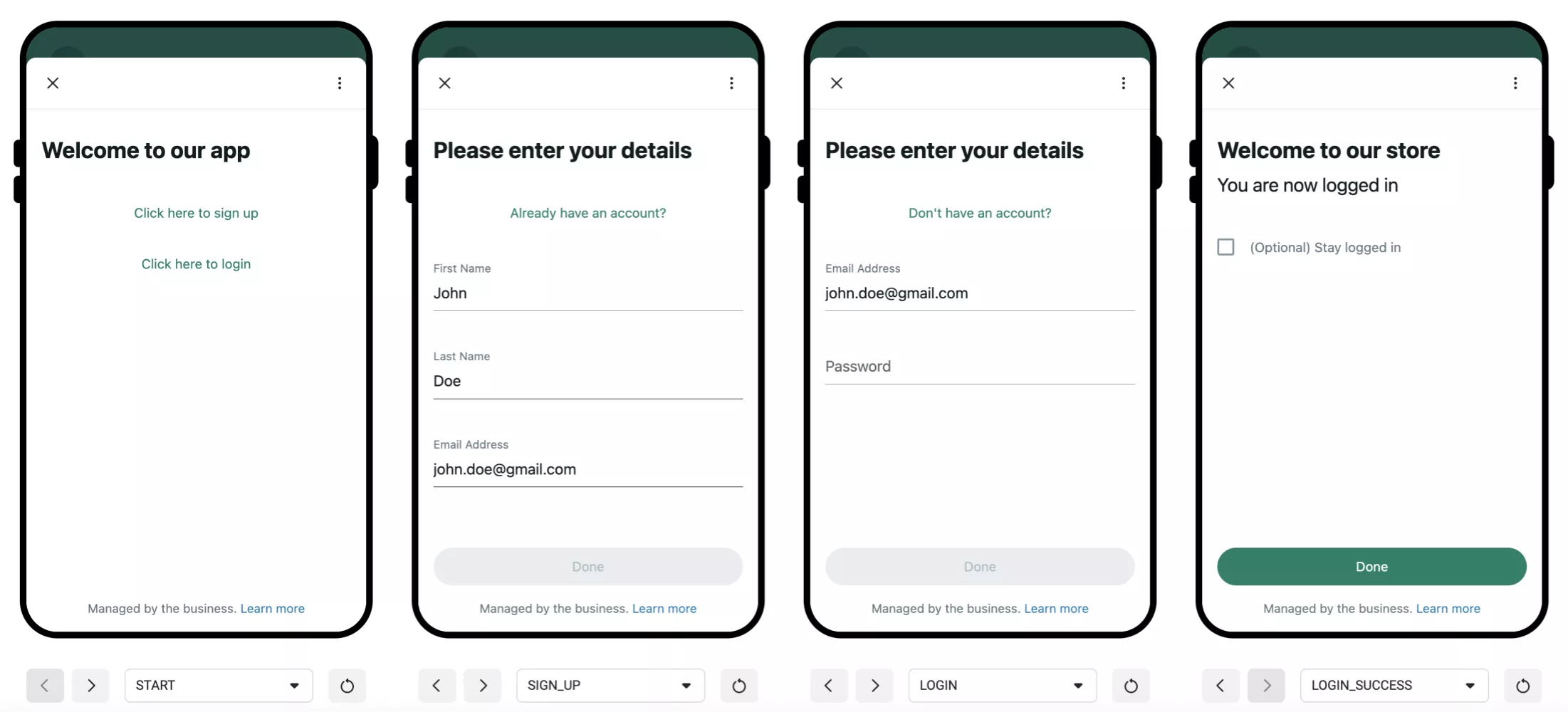
Think of a Flow as a collection of related screens. The screens can exchange data with each other and with your server.
A screen can be static: it can display static content that configured when the flow is created. For example, a screen can display a generic welcome message without any dynamic content, or it can display a message that will be different for each user by providing the message text when the flow is sent to the user or when it requested from the server.
Almost every aspect of a screen component can be dynamic. For example, let’s take the TextInput component which is used to
collect user input (e.g name, email, password, etc.). The label, the input type, the helper text, the minimum and maximum number of characters,
and whether the input is required or not, if the field is pre-filled with a value, and if the field is disabled or not, can all be dynamic.
Each Screen has
A
id: The unique ID of the screen, which is used for navigationA
title: The title of the screen, which is rendered at the top of the screenA
layout: The layout of the screen, which contains the elements that are displayed on the screen.A
data: The data that the screen expects to receive. This data is used to insert content and configure the screen in order to make it dynamic.
Important thing to understand is that it doesn’t matter in which order the screens are defined, every screen is independent and has its own data.
I think it’s easier to understand this with an examples, so let’s get started.
Start Screen#
Let’s start from the START screen. This screen welcomes the user and allows them to choose if they want to sign up
(create an account) or login to their existing account.
- linenos:
- emphasize-lines:
6, 9, 26
- START = Screen(
id=”START”, title=”Home”, layout=Layout(
- children=[
- TextHeading(
text=”Welcome to our app”,
), EmbeddedLink(
text=”Click here to sign up”, on_click_action=Action(
name=FlowActionType.NAVIGATE, next=Next(
type=NextType.SCREEN, name=”SIGN_UP”,
), payload={
“first_name_initial_value”: “”, “last_name_initial_value”: “”, “email_initial_value”: “”, “password_initial_value”: “”, “confirm_password_initial_value”: “”,
},
),
), EmbeddedLink(
text=”Click here to login”, on_click_action=Action(
name=FlowActionType.NAVIGATE, next=Next(
type=NextType.SCREEN, name=”LOGIN”,
), payload={
“email_initial_value”: “”, “password_initial_value”: “”,
},
),
),
]
),
)
This is an example of static screen. The screen doesn’t expect to receive any data and all its components are pre-configured.
The START screen has three components:
A
TextHeading, which welcomes the userA
EmbeddedLinkwith anActionthat navigates to theSIGN_UPscreenA
EmbeddedLinkwith anActionthat navigates to theLOGINscreen
Each EmbeddedLink has an .on_click_action with Action value, so when the user clicks on the link, the action is triggered. In this case,
the action is to FlowActionType.NAVIGATE to another screen. The payload contains the data that will be passed to the navigated screen, in
this case, we are passing the expected data of the SIGN_UP and LOGIN screens.
We will see how this works later on.
Sign Up Screen#
The SIGN_UP screen allows the user to sign up (create an account). Let’s take a look at the layout:
- linenos:
- emphasize-lines:
4, 5, 6, 7, 8, 9, 10, 25, 26, 33, 38, 40, 45, 47, 52, 54, 62, 64, 71, 77, 78, 79, 80, 81, 82, 83
- SIGN_UP = Screen(
id=”SIGN_UP”, title=”Sign Up”, data=[
first_name_initial_value := ScreenData(key=”first_name_initial_value”, example=”John”), last_name_initial_value := ScreenData(key=”last_name_initial_value”, example=”Doe”), email_initial_value := ScreenData(key=”email_initial_value”, example=”john.doe@gmail.com”), password_initial_value := ScreenData(key=”password_initial_value”, example=”abc123”), confirm_password_initial_value := ScreenData(key=”confirm_password_initial_value”, example=”abc123”),
], layout=Layout(
- children=[
- TextHeading(
text=”Please enter your details”,
), EmbeddedLink(
text=”Already have an account?”, on_click_action=Action(
name=FlowActionType.NAVIGATE, next=Next(
type=NextType.SCREEN, name=”LOGIN”,
), payload={
“email_initial_value”: “”, “password_initial_value”: “”,
},
),
), Form(
name=”form”, children=[
- first_name := TextInput(
name=”first_name”, label=”First Name”, input_type=InputType.TEXT, required=True, init_value=first_name_initial_value.ref,
), last_name := TextInput(
name=”last_name”, label=”Last Name”, input_type=InputType.TEXT, required=True, init_value=last_name_initial_value.ref,
), email := TextInput(
name=”email”, label=”Email Address”, input_type=InputType.EMAIL, required=True, init_value=email_initial_value.ref,
), password := TextInput(
name=”password”, label=”Password”, input_type=InputType.PASSWORD, min_chars=8, max_chars=16, helper_text=”Password must contain at least one number”, required=True, init_value=password_initial_value.ref,
), confirm_password := TextInput(
name=”confirm_password”, label=”Confirm Password”, input_type=InputType.PASSWORD, min_chars=8, max_chars=16, required=True, init_value=confirm_password_initial_value.ref,
), Footer(
label=”Done”, on_click_action=Action(
name=FlowActionType.DATA_EXCHANGE, payload={
“first_name”: first_name.ref, “last_name”: last_name.ref, “email”: email.ref, “password”: password.ref, “confirm_password”: confirm_password.ref,
},
),
),
]
)
]
)
)
Ok, that’s a lot of code. Let’s break it down.
In this examples we are using the walrus operator (:=) to assign values to variables. This allows us to use the variables later on in the code without having to declare them outside of the layout and then assign them values later
The SIGN_UP screen expects to receive some data. In this case, we are expecting to receive some values to pre-fill the form fields.
The data of the screen is represented by the .data property. The data is a list of ScreenData objects.
Every ScreenData need to have a unique key and an example value. The example value is used to generate the appropriate
JSON schema for the data. Also, we are assigning every ScreenData to a variable (inlined with the walrus operator) so
that we can use them later on in the code to reference the data and “use” it in the screen (e.g. first_name_initial_value.ref).
The layout of the SIGN_UP screen contains the following elements:
A
TextHeading, which asks the user to enter their detailsA
EmbeddedLinkto theLOGINscreen, which allows the user to login if they already have an account (the user just remembered that they already have an account)A
Form, which contains the form fields that the user needs to fill in to sign upA
Footer, which contains a button that the user can click to submit the form
The Form fields are:
A
TextInputfield for the first name, which is requiredA
TextInputfield for the last name, which is requiredA
TextInputfield for the email address (the input type is set toInputType.EMAIL, so that the keyboard on the user’s phone will show the@symbol and validate the email address. Also, the input is required)A
TextInputfield for the password (the input type is set toInputType.PASSWORD, so that the user’s password is hidden when they type it) We are also providing a helper text to tell the user that the password must contain at least one number. Also, the minimum number of characters is 8 and the maximum is 16, and the input is required)A
TextInputfield for the confirm password (the input type is set toInputType.PASSWORD, so that the user’s password is hidden when they re-type it)
Now, every form child get assigned to a variable (inlined with the walrus operator) so that we can use them later on in
the code to reference the form fields and send their “values” to the server or to another screen (e.g. first_name.ref).
The Footer contains a button that the user can click to submit the form. When the user clicks on the button, the Action
FlowActionType.DATA_EXCHANGE is triggered. This action type allows us to send data to the server and then decide what to do next (for example,
if the user is already registered, we can navigate to the LOGIN screen, or if the password and confirm password do not match,
we can show an error message and ask the user to try again).
The payload of the Action of the Footer contains the data that we want to send to the server. In this case, we are sending
the values of the form fields. The values can be either a ScreenDataRef or a ComponentRef. A ScreenDataRef is used to reference
a screen’s .data items and a ComponentRef is used to reference Form children.
Because we are using the walrus operator to assign the form fields to variables, we can use the variables to reference the form fields
by using the the .ref property of the form field (which is more type-safe than using the ComponentRef with the form field’s name).
The .ref property are equivalent to the ComponentRef with the form component name and the ScreenDataRef with the
screen’s reference, respectively. Infact, the .ref properties are just shortcuts for the ComponentRef and ScreenDataRef classes.
Sign In Screen#
Ok, now to the LOGIN screen. This screen allows the user to login to their existing account.
- linenos:
- emphasize-lines:
5, 6, 7, 8, 22, 23, 24, 25, 26, 27, 28, 34, 39, 41, 46, 52, 53, 54, 55
- LOGIN = Screen(
id=”LOGIN”, title=”Login”, terminal=True, data=[
email_initial_value := ScreenData(key=”email_initial_value”, example=”john.doe@gmail.com”), password_initial_value := ScreenData(key=”password_initial_value”, example=”abc123”),
], layout=Layout(
- children=[
- TextHeading(
text=”Please enter your details”
), EmbeddedLink(
text=”Don’t have an account?”, on_click_action=Action(
name=FlowActionType.NAVIGATE, next=Next(
type=NextType.SCREEN, name=”SIGN_UP”,
), payload={
“email_initial_value”: “”, “password_initial_value”: “”, “confirm_password_initial_value”: “”, “first_name_initial_value”: “”, “last_name_initial_value”: “”,
},
),
), Form(
name=”form”, children=[
- email := TextInput(
name=”email”, label=”Email Address”, input_type=InputType.EMAIL, required=True, init_value=email_initial_value.ref,
), password := TextInput(
name=”password”, label=”Password”, input_type=InputType.PASSWORD, required=True, init_value=password_initial_value.ref,
), Footer(
label=”Done”, on_click_action=Action(
name=FlowActionType.DATA_EXCHANGE, payload={
“email”: email.ref, “password”: password.ref,
},
),
),
]
)
]
)
)
This screen is very straightforward. It has two elements:
A
TextInputfield for the email address (the input type is set toInputType.EMAIL, so that the keyboard on the user’s phone will show the@symbol and validate the email address)A
TextInputfield for the password (the input type is set toInputType.PASSWORD, so that the user’s password is hidden when they type it)
The Footer contains a button that the user can click to submit the form. When the user clicks on the button, We are using the
FlowActionType.DATA_EXCHANGE action type to send the email and password that the user entered, to the server and then decide what to do next (for example,
if the user is not registered, we can navigate to the SIGN_UP screen, or if the password is incorrect, we can show an error message and ask
the user to try again).
Login Success Screen#
Now, to the last screen, the LOGIN_SUCCESS screen. This screen is displayed when the user successfully logs in:
- linenos:
- emphasize-lines:
16, 24, 25, 26
- LOGIN_SUCCESS = Screen(
id=”LOGIN_SUCCESS”, title=”Success”, terminal=True, layout=Layout(
- children=[
- TextHeading(
text=”Welcome to our store”,
), TextSubheading(
text=”You are now logged in”,
), Form(
name=”form”, children=[
- stay_logged_in := OptIn(
name=”stay_logged_in”, label=”Stay logged in”,
), Footer(
label=”Done”, on_click_action=Action(
name=FlowActionType.COMPLETE, payload={
“stay_logged_in”: stay_logged_in.ref,
},
),
),
]
)
]
),
)
This screen has two elements:
A
TextHeading, which welcomes the user to the storeA
TextSubheading, which tells the user that they are now logged inA
Form, which contains anOptInfield that asks the user if they want to stay logged in
The Footer contains a button that the user can click to submit the form. The COMPLETE action is used to complete the flow.
When the user clicks on the button, we are using the FlowActionType.COMPLETE action to send the value of the OptIn field to the server and
then complete the flow.
This screen is the only screen that can complete the flow, that’s why we are setting the terminal property to True.
Creating the Flow#
Now, we need to wrap everything in a FlowJSON object and create the flow:
 1from pywa import utils
 2from pywa.types.flows import FlowJSON
 3
 4SIGN_UP_FLOW_JSON = FlowJSON(
 5    version=utils.Version.FLOW_JSON,
 6    data_api_version=utils.Version.FLOW_DATA_API,
 7    routing_model={
 8        "START": ["SIGN_UP", "LOGIN"],
 9        "SIGN_UP": ["LOGIN"],
10        "LOGIN": ["LOGIN_SUCCESS"],
11        "LOGIN_SUCCESS": [],
12    },
13    screens=[
14        START,
15        SIGN_UP,
16        LOGIN,
17        LOGIN_SUCCESS,
18    ]
19)
The FlowJSON object contains the following properties:
data_api_version: The version of the data API that we are using. We are using the latest version, which isVersion.FLOW_DATA_APIrouting_model: The routing model of the flow. This is used to define the flow’s navigation. In this case, we are using a simple routing model that allows us to navigate from theSTARTscreen to theSIGN_UPandLOGINscreens, from theSIGN_UPscreen to theLOGINscreen (and the other way around), and from theLOGINscreen to theLOGIN_SUCCESSscreen. TheLOGIN_SUCCESScan’t navigate to any other screen.screens: The screens of the flow. In this case, we are using the screens that we created earlier.
Here is all the flow code in one place:
1from pywa import utils
2from pywa.types.flows import (
3 FlowJSON,
4 Screen,
5 ScreenData,
6 Form,
7 Footer,
8 Layout,
9 Action,
10 Next,
11 NextType,
12 FlowActionType,
13 ComponentRef,
14 InputType,
15 TextHeading,
16 TextSubheading,
17 TextInput,
18 OptIn,
19 EmbeddedLink,
20)
21
22SIGN_UP_FLOW_JSON = FlowJSON(
23 version=utils.Version.FLOW_JSON,
24 data_api_version=utils.Version.FLOW_DATA_API,
25 routing_model={
26 "START": ["SIGN_UP", "LOGIN"],
27 "SIGN_UP": ["LOGIN"],
28 "LOGIN": ["LOGIN_SUCCESS"],
29 "LOGIN_SUCCESS": [],
30 },
31 screens=[
32 Screen(
33 id="START",
34 title="Home",
35 layout=Layout(
36 children=[
37 TextHeading(
38 text="Welcome to our app",
39 ),
40 EmbeddedLink(
41 text="Click here to sign up",
42 on_click_action=Action(
43 name=FlowActionType.NAVIGATE,
44 next=Next(
45 type=NextType.SCREEN,
46 name="SIGN_UP",
47 ),
48 payload={
49 "first_name_initial_value": "",
50 "last_name_initial_value": "",
51 "email_initial_value": "",
52 "password_initial_value": "",
53 "confirm_password_initial_value": "",
54 },
55 ),
56 ),
57 EmbeddedLink(
58 text="Click here to login",
59 on_click_action=Action(
60 name=FlowActionType.NAVIGATE,
61 next=Next(
62 type=NextType.SCREEN,
63 name="LOGIN",
64 ),
65 payload={
66 "email_initial_value": "",
67 "password_initial_value": "",
68 },
69 ),
70 ),
71 ]
72 ),
73 ),
74 Screen(
75 id="SIGN_UP",
76 title="Sign Up",
77 data=[
78 first_name_initial_value := ScreenData(key="first_name_initial_value", example="John"),
79 last_name_initial_value := ScreenData(key="last_name_initial_value", example="Doe"),
80 email_initial_value := ScreenData(key="email_initial_value", example="john.doe@gmail.com"),
81 password_initial_value := ScreenData(key="password_initial_value", example="abc123"),
82 confirm_password_initial_value := ScreenData(key="confirm_password_initial_value", example="abc123"),
83 ],
84 layout=Layout(
85 children=[
86 TextHeading(
87 text="Please enter your details",
88 ),
89 EmbeddedLink(
90 text="Already have an account?",
91 on_click_action=Action(
92 name=FlowActionType.NAVIGATE,
93 next=Next(
94 type=NextType.SCREEN,
95 name="LOGIN",
96 ),
97 payload={
98 "email_initial_value": "",
99 "password_initial_value": "",
100 },
101 ),
102 ),
103 Form(
104 name="form",
105 children=[
106 first_name := TextInput(
107 name="first_name",
108 label="First Name",
109 input_type=InputType.TEXT,
110 required=True,
111 init_value=first_name_initial_value.ref,
112 ),
113 last_name := TextInput(
114 name="last_name",
115 label="Last Name",
116 input_type=InputType.TEXT,
117 required=True,
118 init_value=last_name_initial_value.ref,
119 ),
120 email := TextInput(
121 name="email",
122 label="Email Address",
123 input_type=InputType.EMAIL,
124 required=True,
125 init_value=email_initial_value.ref,
126 ),
127 password := TextInput(
128 name="password",
129 label="Password",
130 input_type=InputType.PASSWORD,
131 min_chars=8,
132 max_chars=16,
133 helper_text="Password must contain at least one number",
134 required=True,
135 init_value=password_initial_value.ref,
136 ),
137 confirm_password := TextInput(
138 name="confirm_password",
139 label="Confirm Password",
140 input_type=InputType.PASSWORD,
141 min_chars=8,
142 max_chars=16,
143 required=True,
144 init_value=confirm_password_initial_value.ref,
145 ),
146 Footer(
147 label="Done",
148 on_click_action=Action(
149 name=FlowActionType.DATA_EXCHANGE,
150 payload={
151 "first_name": first_name.ref,
152 "last_name": last_name.ref,
153 "email": email.ref,
154 "password": password.ref,
155 "confirm_password": confirm_password.ref,
156 },
157 ),
158 ),
159 ]
160 )
161 ]
162 )
163 ),
164 Screen(
165 id="LOGIN",
166 title="Login",
167 terminal=True,
168 data=[
169 email_initial_value := ScreenData(key="email_initial_value", example="john.doe@gmail.com"),
170 password_initial_value := ScreenData(key="password_initial_value", example="abc123"),
171 ],
172 layout=Layout(
173 children=[
174 TextHeading(
175 text="Please enter your details"
176 ),
177 EmbeddedLink(
178 text="Don't have an account?",
179 on_click_action=Action(
180 name=FlowActionType.NAVIGATE,
181 next=Next(
182 type=NextType.SCREEN,
183 name="SIGN_UP",
184 ),
185 payload={
186 "email_initial_value": "",
187 "password_initial_value": "",
188 "confirm_password_initial_value": "",
189 "first_name_initial_value": "",
190 "last_name_initial_value": "",
191 },
192 ),
193 ),
194 Form(
195 name="form",
196 children=[
197 email := TextInput(
198 name="email",
199 label="Email Address",
200 input_type=InputType.EMAIL,
201 required=True,
202 init_value=email_initial_value.ref,
203 ),
204 password := TextInput(
205 name="password",
206 label="Password",
207 input_type=InputType.PASSWORD,
208 required=True,
209 init_value=password_initial_value.ref,
210 ),
211 Footer(
212 label="Done",
213 on_click_action=Action(
214 name=FlowActionType.DATA_EXCHANGE,
215 payload={
216 "email": email.ref,
217 "password": password.ref,
218 },
219 ),
220 ),
221 ]
222 )
223 ]
224 ),
225 ),
226 Screen(
227 id="LOGIN_SUCCESS",
228 title="Success",
229 terminal=True,
230 layout=Layout(
231 children=[
232 TextHeading(
233 text="Welcome to our store",
234 ),
235 TextSubheading(
236 text="You are now logged in",
237 ),
238 Form(
239 name="form",
240 children=[
241 stay_logged_in := OptIn(
242 name="stay_logged_in",
243 label="Stay logged in",
244 ),
245 Footer(
246 label="Done",
247 on_click_action=Action(
248 name=FlowActionType.COMPLETE,
249 payload={
250 "stay_logged_in": stay_logged_in.ref,
251 },
252 ),
253 ),
254 ]
255 )
256 ]
257 ),
258 )
259 ]
260)
And if you want to go to the WhatsApp Flows Playground and see the flow in action, copy the equivalent JSON to the playground:
1{
2 "version": "3.0",
3 "data_api_version": "3.0",
4 "routing_model": {
5 "START": [
6 "SIGN_UP",
7 "LOGIN"
8 ],
9 "SIGN_UP": [
10 "LOGIN"
11 ],
12 "LOGIN": [
13 "LOGIN_SUCCESS"
14 ],
15 "LOGIN_SUCCESS": []
16 },
17 "screens": [
18 {
19 "id": "START",
20 "title": "Home",
21 "layout": {
22 "type": "SingleColumnLayout",
23 "children": [
24 {
25 "type": "TextHeading",
26 "text": "Welcome to our app"
27 },
28 {
29 "type": "EmbeddedLink",
30 "text": "Click here to sign up",
31 "on-click-action": {
32 "name": "navigate",
33 "next": {
34 "type": "screen",
35 "name": "SIGN_UP"
36 },
37 "payload": {
38 "first_name_initial_value": "",
39 "last_name_initial_value": "",
40 "email_initial_value": "",
41 "password_initial_value": "",
42 "confirm_password_initial_value": ""
43 }
44 }
45 },
46 {
47 "type": "EmbeddedLink",
48 "text": "Click here to login",
49 "on-click-action": {
50 "name": "navigate",
51 "next": {
52 "type": "screen",
53 "name": "LOGIN"
54 },
55 "payload": {
56 "email_initial_value": "",
57 "password_initial_value": ""
58 }
59 }
60 }
61 ]
62 }
63 },
64 {
65 "id": "SIGN_UP",
66 "title": "Sign Up",
67 "data": {
68 "first_name_initial_value": {
69 "type": "string",
70 "__example__": "John"
71 },
72 "last_name_initial_value": {
73 "type": "string",
74 "__example__": "Doe"
75 },
76 "email_initial_value": {
77 "type": "string",
78 "__example__": "john.doe@gmail.com"
79 },
80 "password_initial_value": {
81 "type": "string",
82 "__example__": "abc123"
83 },
84 "confirm_password_initial_value": {
85 "type": "string",
86 "__example__": "abc123"
87 }
88 },
89 "layout": {
90 "type": "SingleColumnLayout",
91 "children": [
92 {
93 "type": "TextHeading",
94 "text": "Please enter your details"
95 },
96 {
97 "type": "EmbeddedLink",
98 "text": "Already have an account?",
99 "on-click-action": {
100 "name": "navigate",
101 "next": {
102 "type": "screen",
103 "name": "LOGIN"
104 },
105 "payload": {
106 "email_initial_value": "",
107 "password_initial_value": ""
108 }
109 }
110 },
111 {
112 "type": "Form",
113 "name": "form",
114 "init-values": {
115 "first_name": "${data.first_name_initial_value}",
116 "last_name": "${data.last_name_initial_value}",
117 "email": "${data.email_initial_value}",
118 "password": "${data.password_initial_value}",
119 "confirm_password": "${data.confirm_password_initial_value}"
120 },
121 "children": [
122 {
123 "type": "TextInput",
124 "name": "first_name",
125 "label": "First Name",
126 "input-type": "text",
127 "required": true
128 },
129 {
130 "type": "TextInput",
131 "name": "last_name",
132 "label": "Last Name",
133 "input-type": "text",
134 "required": true
135 },
136 {
137 "type": "TextInput",
138 "name": "email",
139 "label": "Email Address",
140 "input-type": "email",
141 "required": true
142 },
143 {
144 "type": "TextInput",
145 "name": "password",
146 "label": "Password",
147 "input-type": "password",
148 "required": true,
149 "min-chars": 8,
150 "max-chars": 16,
151 "helper-text": "Password must contain at least one number"
152 },
153 {
154 "type": "TextInput",
155 "name": "confirm_password",
156 "label": "Confirm Password",
157 "input-type": "password",
158 "required": true,
159 "min-chars": 8,
160 "max-chars": 16
161 },
162 {
163 "type": "Footer",
164 "label": "Done",
165 "on-click-action": {
166 "name": "data_exchange",
167 "payload": {
168 "first_name": "${form.first_name}",
169 "last_name": "${form.last_name}",
170 "email": "${form.email}",
171 "password": "${form.password}",
172 "confirm_password": "${form.confirm_password}"
173 }
174 }
175 }
176 ]
177 }
178 ]
179 }
180 },
181 {
182 "id": "LOGIN",
183 "title": "Login",
184 "data": {
185 "email_initial_value": {
186 "type": "string",
187 "__example__": "john.doe@gmail.com"
188 },
189 "password_initial_value": {
190 "type": "string",
191 "__example__": "abc123"
192 }
193 },
194 "terminal": true,
195 "layout": {
196 "type": "SingleColumnLayout",
197 "children": [
198 {
199 "type": "TextHeading",
200 "text": "Please enter your details"
201 },
202 {
203 "type": "EmbeddedLink",
204 "text": "Don't have an account?",
205 "on-click-action": {
206 "name": "navigate",
207 "next": {
208 "type": "screen",
209 "name": "SIGN_UP"
210 },
211 "payload": {
212 "email_initial_value": "",
213 "password_initial_value": "",
214 "confirm_password_initial_value": "",
215 "first_name_initial_value": "",
216 "last_name_initial_value": ""
217 }
218 }
219 },
220 {
221 "type": "Form",
222 "name": "form",
223 "init-values": {
224 "email": "${data.email_initial_value}",
225 "password": "${data.password_initial_value}"
226 },
227 "children": [
228 {
229 "type": "TextInput",
230 "name": "email",
231 "label": "Email Address",
232 "input-type": "email",
233 "required": true
234 },
235 {
236 "type": "TextInput",
237 "name": "password",
238 "label": "Password",
239 "input-type": "password",
240 "required": true
241 },
242 {
243 "type": "Footer",
244 "label": "Done",
245 "on-click-action": {
246 "name": "data_exchange",
247 "payload": {
248 "email": "${form.email}",
249 "password": "${form.password}"
250 }
251 }
252 }
253 ]
254 }
255 ]
256 }
257 },
258 {
259 "id": "LOGIN_SUCCESS",
260 "title": "Success",
261 "terminal": true,
262 "layout": {
263 "type": "SingleColumnLayout",
264 "children": [
265 {
266 "type": "TextHeading",
267 "text": "Welcome to our store"
268 },
269 {
270 "type": "TextSubheading",
271 "text": "You are now logged in"
272 },
273 {
274 "type": "Form",
275 "name": "form",
276 "children": [
277 {
278 "type": "OptIn",
279 "name": "stay_logged_in",
280 "label": "Stay logged in"
281 },
282 {
283 "type": "Footer",
284 "label": "Done",
285 "on-click-action": {
286 "name": "complete",
287 "payload": {
288 "stay_logged_in": "${form.stay_logged_in}"
289 }
290 }
291 }
292 ]
293 }
294 ]
295 }
296 }
297 ]
298}
Creating the flow is very simple using the create_flow() method:
 1from pywa import WhatsApp
 2from pywa.types.flows import FlowCategory
 3
 4wa = WhatsApp(
 5    phone_id="1234567890",
 6    token="abcdefg",
 7    waba_id="1234567890",  # the ID of the WhatsApp Business Account
 8)
 9
10flow_id = wa.create_flow(
11    name="Sign Up Flow",
12    categories=[FlowCategory.SIGN_IN, FlowCategory.SIGN_UP],
13)
Because we are going to exchange data with our server, we need to provide endpoint URI for the flow. This is the URI that
WhatsApp will use to send data to our server. We can do this by using the update_flow_metadata() method:
1wa.update_flow_metadata(
2    flow_id=flow_id,
3    endpoint_uri="https://my-server.com/sign-up-flow",
4)
This endpoint must, of course, be pointing to our server. We can use serveo, localtunnel or a similar tool to expose our server to the internet.
Finally, let’s update the flow’s JSON with update_flow_json():
 1from pywa.errors import FlowUpdatingError
 2
 3try:
 4    wa.update_flow_json(
 5        flow_id=flow_id,
 6        flow_json=SIGN_UP_FLOW_JSON,
 7    )
 8    print("Flow updated successfully")
 9except FlowUpdatingError as e:
10    print("Flow updating failed")
11    print(wa.get_flow(flow_id=flow_id).validation_errors)
Storing Users#
After the flow updates successfully, we can start with our server logic. First we need a simple user repository to store the users:
 1import typing
 2
 3class UserRepository:
 4    def __init__(self):
 5        self._users = {}
 6
 7    def create(self, email: str, details: dict[str, typing.Any]):
 8        self._users[email] = details
 9
10    def get(self, email: str) -> dict[str, typing.Any] | None:
11        return self._users.get(email)
12
13    def update(self, email: str, details: dict[str, typing.Any]):
14        self._users[email] = details
15
16    def delete(self, email: str):
17        del self._users[email]
18
19    def exists(self, email: str) -> bool:
20        return email in self._users
21
22    def is_password_valid(self, email: str, password: str) -> bool:
23        return self._users[email]["password"] == password
24
25user_repository = UserRepository()  # create an instance of the user repository
Of course, in a real application, we would use a real database to store the users (and we never store the passwords in plain text…).
Sending the Flow#
To send the flow we need to initialize the WhatsApp client with some specific parameters:
- linenos:
from pywa import WhatsApp
- wa = WhatsApp(
phone_id=”1234567890”, token=”abcdefg”, callback_url=”https://my-server.com”, webhook_endpoint=”/webhook”, verify_token=”xyz123”, app_id=123, app_secret=”zzz”, business_private_key=open(“private.pem”).read(), business_private_key_password=”abc123”,
)
The WhatsApp class takes a few parameters:
phone_id: The phone ID of the WhatsApp account that we are using to send and receive messagestoken: The token of the WhatsApp account that we are using to send and receive messagescallback_url: The URL that WhatsApp will use to send us updateswebhook_endpoint: The endpoint that WhatsApp will use to send us updatesverify_token: Used by WhatsApp to challenge the server when we register the webhookapp_id: The ID of the WhatsApp App, needed to register the callback URLapp_secret: The secret of the WhatsApp App, needed to register the callback URLbusiness_private_key: The private key of the WhatsApp Business Account, needed to decrypt the flow requests (see here for more info)business_private_key_password: The passphrase of the private_key, if it has one
First let’s send the flow!
 1from pywa.types import FlowButton
 2from pywa.types.flows import FlowStatus, FlowActionType
 3
 4wa.send_message(
 5    to="1234567890",
 6    text="Welcome to our app! Click the button below to login or sign up",
 7    buttons=FlowButton(
 8        title="Sign Up",
 9        flow_id=flow_id,
10        flow_token="5749d4f8-4b74-464a-8405-c26b7770cc8c",
11        mode=FlowStatus.DRAFT,
12        flow_action_type=FlowActionType.NAVIGATE,
13        flow_action_screen="START",
14    )
15)
Ok, let’s break this down:
Sending a flow is very simple. We sending text (or image, video etc.) message with a FlowButton. The FlowButton contains the following properties:
title: The title of the button (the text that the user will see on the button)flow_id: The ID of the flow that we want to sendmode: The mode of the flow. We are usingFlowStatus.DRAFTbecause we are still testing the flow. When we are ready to publish the flow, we can change the mode toFlowStatus.PUBLISHEDflow_action_type: The action that will be triggered when the user clicks on the button. In this case, we are usingFlowActionType.NAVIGATEto navigate to theSTARTscreenflow_action_screen: The name of the screen that we want to navigate to. In this case, we are usingSTARTflow_token: The unique token for this specific flow.
When the flow request is sent to our server, we don’t know which flow and which user the request is for. We only know the flow token. So, the flow token is used to give us some context about the flow request. We can use the flow token to identify the user and the flow. The flow token can be saved in a database or in-memory cache, and be mapped to the user ID and the flow ID (in cases you have multiple flows running at your application). And when requests are coming, you can use the flow token to identify the user and the flow and make the appropriate actions for the request.
The flow token can be also used to invalidate the flow, by raising FlowTokenNoLongerValid exception with appropriate error_message.
A good practice is to generate a unique token for each flow request. This way, we can be sure that the token is unique and that we can identify the user and the flow.
You can use the uuid module to generate a unique token:
1import uuid
2
3flow_token = str(uuid.uuid4())
After we create the WhatsApp instance and we send the flow, we can start listening to flow requests:
1from pywa.types.flows import FlowRequest, FlowResponse
2
3@wa.on_flow_request("/sign-up-flow")
4def on_sign_up_request(_: WhatsApp, flow: FlowRequest) -> FlowResponse | None:
5    if flow.has_error:
6        logging.error("Flow request has error: %s", flow.data)
7        return
8
9    ...
The on_flow_request() decorator takes the endpoint URI as a parameter. This is the endpoint that we provided when we updated the flow’s metadata.
So if the endpoint URI is https://my-server.com/sign-up-flow, then the endpoint URI that we are listening to is /sign-up-flow.
Yes, you can point multiple flows to the same endpoint URI. But then you need to find a way to identify the flow by the flow token. I recommend creating a unique endpoint URI for each flow.
Our on_sign_up_request calback function takes two parameters:
wa: TheWhatsAppclass instanceflow: AFlowRequestobject, which contains the flow request data
The flow request contains the following properties:
version: The version of the flow data API that the flow request is using (you should use thisn version in the response)flow_token: The token of the flow (the same token that we provided when we sent the flow)action: The action type that was triggered the request.FlowActionType.DATA_EXCHANGEin our case.screen: The name of the screen that the user is currently on (We have two screens with data exchange actions, so we need to know which screen the user is currently on)data: The data that the action sent to the server (thepayloadproperty of the action)
In the top of the function, we are checking if the flow request has an error. If it does, we are logging the error and returning.
By default, if the flow has error,
pywawill ignore the callback return value and will acknowledge the error. This behavior can be changed by settingacknowledge_errorsparameter toFalseinon_flow_requestdecorator.
Handling Sign Up Flow Requests#
Now, let’s handle the flow request. we can handle all the screens in one code block but for the sake of simplicity, we will handle each screen separately:
 1@on_sign_up_request.on(
 2    action=FlowRequestActionType.DATA_EXCHANGE,
 3    screen="SIGN_UP",
 4    filters=filters.new(lambda _, request: user_repository.exists(request.data["email"])),
 5)
 6def if_already_registered(_: WhatsApp, request: FlowRequest) -> FlowResponse | None:
 7    return FlowResponse(
 8        version=request.version,
 9        screen="LOGIN",
10        error_message="You are already registered. Please login",
11        data={
12            "email_initial_value": request.data["email"],
13            "password_initial_value": request.data["password"],
14        },
15    )
16
17@on_sign_up_request.on(
18    action=FlowRequestActionType.DATA_EXCHANGE,
19    screen="SIGN_UP",
20    filters=filters.new(lambda _, request: request.data["password"] != request.data["confirm_password"]),
21)
22def if_passwords_dont_match(_: WhatsApp, request: FlowRequest) -> FlowResponse | None:
23    return FlowResponse(
24        version=request.version,
25        screen=request.screen,
26        error_message="Passwords do not match",
27        data={
28            "first_name_initial_value": request.data["first_name"],
29            "last_name_initial_value": request.data["last_name"],
30            "email_initial_value": request.data["email"],
31            "password_initial_value": "",
32            "confirm_password_initial_value": "",
33        },
34    )
35
36@on_sign_up_request.on(
37    action=FlowRequestActionType.DATA_EXCHANGE,
38    screen="SIGN_UP",
39    filters=filters.new(lambda _, request: not any(char.isdigit() for char in request.data["password"])),
40)
41def if_password_does_not_contain_number(
42    _: WhatsApp, request: FlowRequest
43) -> FlowResponse | None:
44    return FlowResponse(
45        version=request.version,
46        screen=request.screen,
47        error_message="Password must contain at least one number",
48        data={
49            "first_name_initial_value": request.data["first_name"],
50            "last_name_initial_value": request.data["last_name"],
51            "email_initial_value": request.data["email"],
52            "password_initial_value": "",
53            "confirm_password_initial_value": "",
54        },
55    )
56
57@on_sign_up_request.on(action=FlowRequestActionType.DATA_EXCHANGE, screen="SIGN_UP")
58def submit_signup(_: WhatsApp, request: FlowRequest) -> FlowResponse | None:
59    user_repository.create(request.data["email"], request.data)
60    return FlowResponse(
61        version=request.version,
62        screen="LOGIN",
63        data={
64            "email_initial_value": request.data["email"],
65            "password_initial_value": "",
66        },
67    )
So, what’s going on here?
Note
The on() decorator added in version 1.22.0.
before that, you need to handle the action and screen in the function itself (or manually filter the data).
 1@wa.on_flow_request("/sign-up-flow")
 2def on_sign_up_request(_: WhatsApp, flow: FlowRequest) -> FlowResponse | None:
 3    if flow.action == FlowRequestActionType.DATA_EXCHANGE:
 4        if flow.screen == "SIGN_UP":
 5            if user_repository.exists(flow.data["email"]):
 6                ...
 7            elif flow.data["password"] != flow.data["confirm_password"]:
 8                ...
 9            elif not any(char.isdigit() for char in flow.data["password"]):
10                ...
11            else:
12                ...
13        elif flow.screen == "LOGIN":
14            ...
15        elif flow.screen == "LOGIN_SUCCESS":
16            ...
This function handles the SIGN_UP screen.
We need to check a few things:
Check if the user is already registered. If they are, we need to navigate to the
LOGINscreen and show an error messageCheck if the password and confirm password match. If they don’t, we navigate again to
SIGN_UPscreen and show an error messageCheck if the password contains at least one number. If it doesn’t, we navigate again to
SIGN_UPscreen and show an error messageIf everything is ok, we create the user and navigate to the
LOGINscreen (with the email address already filled in 😋)Now you understand why
SIGN_UPscreen get’s initial values? because we don’t want the user to re-enter the data again if there is an error. From the same reason,LOGINscreen get’s initial values too, so when the sign up succeeds, the user will be navigated to theLOGINscreen with the email address already filled in.
Handling Login Flow Requests#
Now, let’s handle the LOGIN screen:
 1@on_sign_up_request.on(
 2    action=FlowRequestActionType.DATA_EXCHANGE,
 3    screen="LOGIN",
 4    filters=filters.new(lambda _, request: not user_repository.exists(request.data["email"])),
 5)
 6def if_not_registered(_: WhatsApp, request: FlowRequest) -> FlowResponse | None:
 7    return FlowResponse(
 8        version=request.version,
 9        screen="SIGN_UP",
10        error_message="You are not registered. Please sign up",
11        data={
12            "first_name_initial_value": "",
13            "last_name_initial_value": "",
14            "email_initial_value": request.data["email"],
15            "password_initial_value": "",
16            "confirm_password_initial_value": "",
17        },
18    )
19
20@on_sign_up_request.on(
21    action=FlowRequestActionType.DATA_EXCHANGE,
22    screen="LOGIN",
23    filters=filters.new(
24        lambda _, request: not user_repository.is_password_valid(request.data["email"], request.data["password"])),
25)
26def if_incorrect_password(_: WhatsApp, request: FlowRequest) -> FlowResponse | None:
27    return FlowResponse(
28        version=request.version,
29        screen=request.screen,
30        error_message="Incorrect password",
31        data={
32            "email_initial_value": request.data["email"],
33            "password_initial_value": "",
34        },
35    )
36
37@on_sign_up_request.on(action=FlowRequestActionType.DATA_EXCHANGE, screen="LOGIN")
38def login_success(_: WhatsApp, request: FlowRequest) -> FlowResponse | None:
39    return FlowResponse(
40        version=request.version,
41        screen="LOGIN_SUCCESS",
42        data={},
43    )
The LOGIN screen is very similar to the SIGN_UP screen. We need to check a few things:
Check if the user is registered. If they are not, we need to navigate to the
SIGN_UPscreen and show an error messageCheck if the password is correct. If it’s not, we need to navigate again to
LOGINscreen and show an error messageIf everything is ok, we navigate to the
LOGIN_SUCCESSscreen
Handling the Flow Requests#
Let’s modify out on_sign_up_request callback function to handle the SIGN_UP and LOGIN screens:
1@wa.on_flow_request("/sign-up-flow")
2def on_sign_up_request(_: WhatsApp, flow: FlowRequest) -> FlowResponse | None:
3    if flow.has_error:  # you can handle this also separately by registering another callback with @on_sign_up_request.on_errors
4        logging.error("Flow request has error: %s", flow.data)
5        return
Handling Flow Completion#
The LOGIN_SUCCESS scrren completes the flow, so we don’t need to do anything here. instead we need to handle the flow completion:
1@wa.on_flow_completion()
2def handle_flow_completion(_: WhatsApp, flow: FlowCompletion):
3    print("Flow completed successfully")
4    print(flow.token)
5    print(flow.response)
Now, in a real application, this is the time to mark the user as logged in and allow them to perform actions in their account. You can also implement some kind of session management, so that the user will stay logged in for a certain amount of time and then require them to login again.
Running the Server#
The last thing that we need to do is run the server:
pywa dev
What’s Next?#
Now that you know how to create and send a flow, you can try to add the following features to the flow:
A
FORGOT_PASSWORDscreen, which allows the user to reset their password if they forgot itA more detailed
LOGIN_SUCCESSscreen, which shows the user’s name, email address and other detailsTry to adding a nice image to the
STARTscreen, to make it more appealingA
LOGOUTscreen, which allows the user to logout from their accountAllow the user to change their email & password
Allow the user to close the flow at any screen