
🎛️ Handlers#
To handle the updates from WhatsApp, you need a way to receive them. This is done by starting a web server that will receive the updates from WhatsApp and then call your callback function to handle them.
To allow maximum flexibility, pywa does not start the server. This allows the server to be
started independently with the desired configurations without any need for pywa to know them.
All pywa does is register a route that will handle the incoming updates from WhatsApp.
This means that you can use the same server to handle other parts of your application without any limitation from pywa.
In order for WhatsApp to send the updates to your server, you need a callback url.
The callback url must be a public, secure (HTTPS) url that points to your server (or your local machine if you are testing locally). You can use a service like Cloudflare Tunnel or localtunnel to create a secure tunnel to which WhatsApp can send the updates. These services will give you a public url that points to your machine (where you run the code).
Tip
Facebook keep blocking domains that are used by these services (e.g. ngrok, localtunnel, etc.). So, you may need to try multiple services to find one that works, or use a custom domain.
Here is an example using Cloudflare Tunnel:
You will get screen with the public url that points to your machine
cloudflared tunnel --url http://localhost:8080
Once you have a public url, You need to register it. This can be done two ways:
Automatically by pywa
Manually in the WhatsApp App Dashboard
Automatically registering the callback url#
This is the easiest way to register the callback url. All you need to do is to pass the url to the callback_url argument
when initializing the WhatsApp client and pywa will automatically register the url, and handle the verification request
for you.
This method requires the ID and the secret of the WhatsApp app. See Here how to get them.
Example using FastAPI
Install FastAPI (
pip3 install -U "pywa[fastapi]"):
 1import fastapi
 2from pywa import WhatsApp
 3
 4fastapi_app = fastapi.FastAPI()
 5
 6wa = WhatsApp(
 7    phone_id='1234567890',
 8    token='xxxxxx',
 9    server=fastapi_app,
10    callback_url='https://abc123.trycloudflare.com',
11    verify_token='XYZ123',
12    app_id=123456,
13    app_secret='xxxxxx'
14)
15
16... # register the handlers
fastapi dev main.py --port 8080
The port that fastapi is running on (8080 in the example above) must be the same port that the callback url is listening on (e.g. cloudflared tunnel --url http://localhost:8080).
Registering the callback url manually in the WhatsApp App Dashboard#
In this method, pywa will not register the callback url for you. Instead, pywa will assume that you have already registered an callback url, or that you will register one AFTER you start the server.
If you already have callback url that points to your server, you just need to start the server (on the same port that the callback url is listening on).
If not, you will need to register a callback url manually in the WhatsApp App Dashboard, And this need to be done AFTER you start the server, so pywa can handle the verification request from WhatsApp.
So, start the server:
Example using FastAPI
Install FastAPI (
pip3 install -U "pywa[fastapi]"):
 1import fastapi
 2from pywa import WhatsApp
 3
 4fastapi_app = fastapi.FastAPI()
 5
 6wa = WhatsApp(
 7    phone_id='1234567890',
 8    token='xxxxxx',
 9    server=fastapi_app,
10    verify_token='XYZ123',
11)
12
13... # register the handlers
fastapi dev main.py --port 8080
The port that fastapi is running on (8080 in the example above) must be the same port that the callback url is listening on (e.g. cloudflared tunnel --url http://localhost:8080).
Then, register the callback url in the WhatsApp App Dashboard.
The registration can be done in the App Dashboard > WhatsApp > Configuration > Callback URL. You need to enter the webhook url
and the verify token that you used when initializing the WhatsApp client.

Important
When registering the callback url manually, you must subscribe to webhook fields in your webhook settings. Otherwise, you will not receive any updates.
To enable it, go to your app dashboard, click on the Webhooks tab (Or the Configuration tab > Webhook fields).
Then, subscribe to the fields you want to receive.
- The current supported fields are:
messages(all user related updates)message_template_status_update(template got approved, rejected, etc.)
You can subscribe to all the other fields, but they will not be handled by pywa, they can still be handled manually by
registering a callback for the on_raw_update() decorator (or the RawUpdateHandler handler).
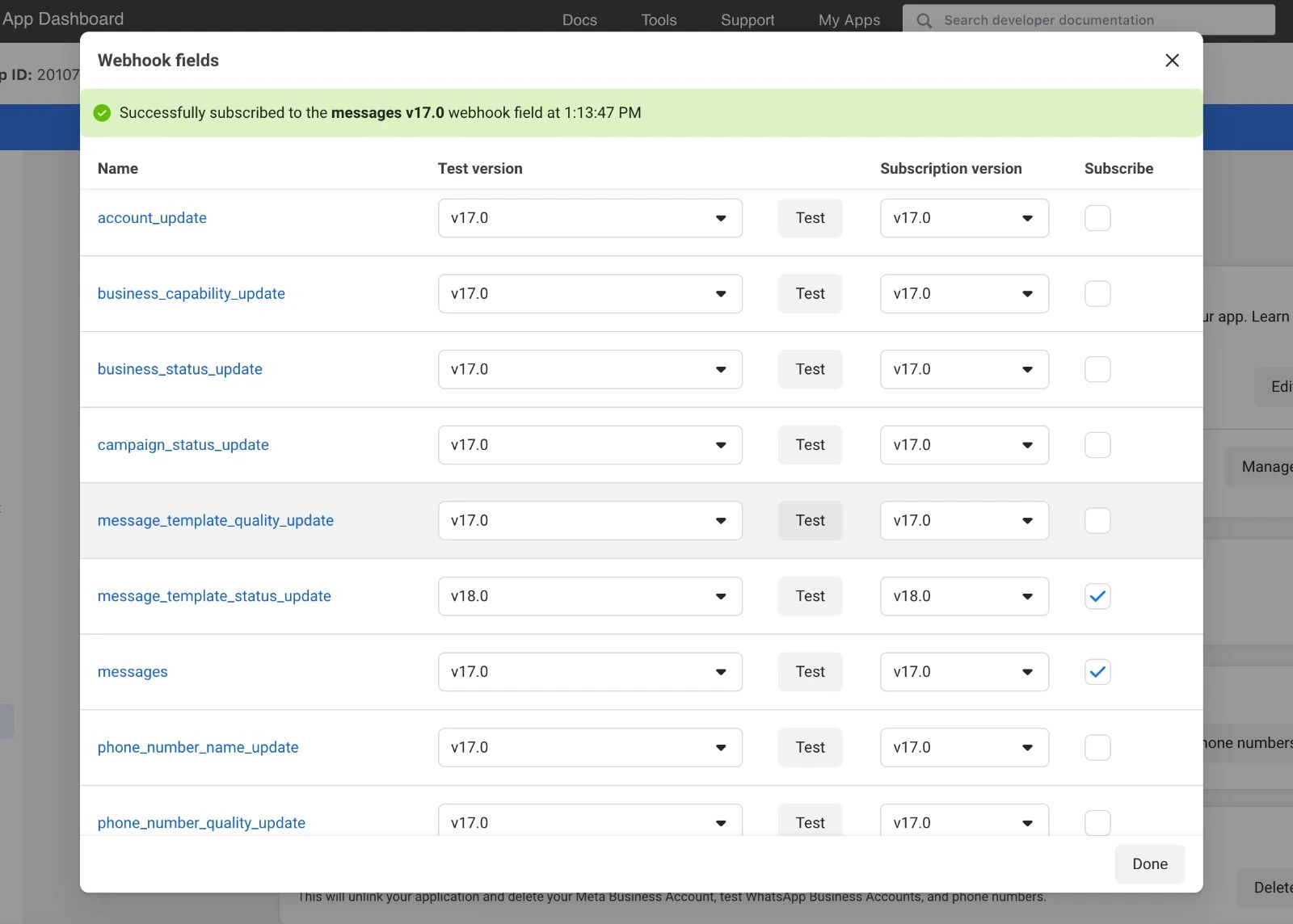
If everything is correct, WhatsApp will start sending the updates to the webhook url.
Registering a callback function#
To handle the incoming updates, you need to register a callback function. This function will be called whenever an update is received from WhatsApp.
- A callback function is a function that takes two (positional) arguments:
The WhatsApp client object (
WhatsApp)The update object (
Message,CallbackButton, etc.)
Here is an example of a callback functions
from pywa import WhatsApp, types

def echo_ok(client: WhatsApp, msg: types.Message):
    msg.reply('Ok')

def react_to_button(client: WhatsApp, clb: types.CallbackButton):
    clb.react('❤️')
Once you define the callback function, you have two ways to register it:
Using decorators#
The easiest way to register a callback function is to use the on_message and the other on_... decorators:
 1from pywa import WhatsApp, types
 2from fastapi import FastAPI
 3
 4fastapi_app = FastAPI()
 5wa = WhatsApp(..., server=fastapi_app)
 6
 7@wa.on_message
 8def handle_message(client: WhatsApp, msg: types.Message):
 9    print(msg)
10
11
12@wa.on_callback_button
13def handle_callback_button(client: WhatsApp, clb: types.CallbackButton):
14    print(clb.data)
fastapi dev main.py
Tip
If you don’t have accees to the client instance, you can register the callback functions with the WhatsApp class:
Create module for the handlers:
1from pywa import WhatsApp, types
2from fastapi import FastAPI
3
4fastapi_app = FastAPI()
5wa = WhatsApp(..., server=fastapi_app)
6
7@WhatsApp.on_message  # Register the handler with the WhatsApp class
8def handle_message(client: WhatsApp, msg: types.Message):
9    print(msg)
And then load it in the main file:
1from pywa import WhatsApp
2from . import my_handlers  # Import the module that contains the handlers
3
4wa = WhatsApp(..., handlers_modules=[my_handlers])
5
6# Or:
7
8wa = WhatsApp(...)
9wa.load_handlers_modules(my_handlers)
Using Handler objects#
The other way to register a callback function is to use the add_handlers() method and pass the function wrapped in
a Handler object. This is useful when your application is large and you want to separate the handlers from the
main code, or when you want to dynamically register handlers programmatically.
1from pywa import WhatsApp, types
2
3def handle_message(wa: WhatsApp, msg: types.Message):
4    print(message)
5
6def handle_callback_button(wa: WhatsApp, clb: types.CallbackButton):
7    print(clb.data)
 1from pywa import WhatsApp, handlers
 2from . import my_handlers
 3from fastapi import FastAPI
 4
 5fastapi_app = FastAPI()
 6wa = WhatsApp(..., server=fastapi_app)
 7
 8wa.add_handlers(
 9    handlers.MessageHandler(callback=my_handlers.handle_message),
10    handlers.CallbackButtonHandler(callback=my_handlers.handle_callback_button),
11)
fastapi dev main.py
Available handlers#
Decorator |
Handler |
The type of the update |
|---|---|---|
Filtering updates#
You can filter the updates by passing filters to the decorators. This is useful when you want to handle only specific updates.
1from pywa import WhatsApp, types, filters
2
3wa = WhatsApp(...)
4
5@wa.on_message(filters.text)  # Handle only text messages
6def echo(client: WhatsApp, msg: types.Message):
7    # we know this handler will get only text messages, so:
8    msg.reply(text=msg.text)
Listen instead of registering#
The handlers can be registered and removed dynamicly when the server is running. but most of the time you can use listeners instead of registering new handler. This is because handler should be a start point of the application, like handling command, or menu click, but when you want to collect data from the user (e.g. ask for his age or address) you can use listeners:
1from pywa import WhatsApp, types, filters
2
3wa = WhatsApp(...)
4
5@wa.on_message(filters.command("start")
6def start(_: WhatsApp, msg: types.Message):
7    age = msg.reply("Hello! What's your age?").wait_for_reply(filters.text).text
8    ...
Note
Read more about listeners here.
Stop or continue handling updates#
When a handler is called, when it finishes, in default, the next handler will not be called.
 1from pywa import WhatsApp, types
 2
 3wa = WhatsApp(...)
 4
 5@wa.on_message
 6def handle_message(client: WhatsApp, msg: types.Message):
 7    print(msg)
 8    # The next handler will not be called
 9
10@wa.on_message
11def handle_message2(client: WhatsApp, msg: types.Message):
12    print(msg)
Tip
The order of the handlers is the order they are registered. You can override this by providing priority argument to the handler.
 1from pywa import WhatsApp, types
 2
 3wa = WhatsApp(...)
 4
 5@wa.on_message(priority=1)
 6def handle_message(client: WhatsApp, msg: types.Message):
 7    print(msg)
 8
 9@wa.on_message(priority=2) # this handler will be called before the previous one
10def handle_message2(client: WhatsApp, msg: types.Message):
11    print(msg)
You can change this behavior by setting the continue_handling to True when initializing WhatsApp.
1wa = WhatsApp(..., continue_handling=True)
2
3@wa.on_message
4def handle_message(client: WhatsApp, msg: types.Message):
5    print(msg)
6    # The next handler WILL be called
7...
You can also change this behavior inside the callback function by calling the stop_handling()
or continue_handling() methods on the update object.
 1from pywa import WhatsApp, types, filters
 2
 3wa = WhatsApp(...)
 4
 5@wa.on_message(filters.text)
 6def handle_message(client: WhatsApp, msg: types.Message):
 7    print(msg)
 8    if msg.text == 'stop':
 9        msg.stop_handling() # The next handler will not be called
10    else:
11        msg.continue_handling() # The next handler will be called
12
13...
Validating the updates#
WhatsApp recommends
validating the updates by checking the signature of the update. This is done by comparing the
signature of the update with the signature that WhatsApp sends in the X-Hub-Signature-256 header of the request.
To enable this feature, you need to pass the app_secret when initializing the WhatsApp client.
1from pywa import WhatsApp
2
3wa = WhatsApp(
4    validate_updates=True, # Default is True
5    app_secret='xxxx',
6    ...
7)
If the signature is invalid, pywa will return an HTTP 401 Unauthorized response.
The validation is done by default. You can disable this feature by setting the validate_updates to False when initializing WhatsApp.
- Handler Decorators
WhatsApp.on_message()WhatsApp.on_callback_button()WhatsApp.on_callback_selection()WhatsApp.on_flow_completion()WhatsApp.on_flow_request()WhatsApp.on_message_status()WhatsApp.on_chat_opened()WhatsApp.on_template_status()WhatsApp.on_raw_update()WhatsApp.remove_callbacks()WhatsApp.load_handlers_modules()
- Handler Objects